
Creating a Formula in Excel – Step by Step
Creating a Formula – Step by Step
In the following example we will create a formula to calculate the contents of cell A1 plus A2.
- Click the cell that will hold the calculation result. In this case A3.
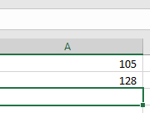
- Press equals (=).
- Select cell A1. You will notice “marching ants” around A1 indicating that you have selected it.
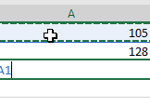
- Press the plus sign key on the keyboard (+).
- Click cell A2. The “marching ants” will highlight A2.
- Press Enter or click on the tick on the formula bar.
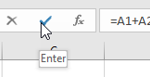
- The result: the answer will appear in the worksheet while the formula will appear in the formula bar.
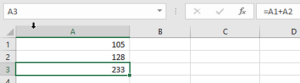
Tip: you can also type the formula straight into the cell – just type = then A1+A2 and press Enter. Clicking the cells, as above, helps you avoid typing the wrong cell address.
NOTE: If the numbers are updated in A1 or A2, the formula in A3 will automatically display the updated result.
Tip:When writing a formula you can type the cell references instead of clicking the cell. Cell references are not case sensitive.